Why Upgrade?
Keeping network infrastructure up to date with the most recent firmware upgrades is important, as the upgrades generally include security updates that can help protect your network. To find out the details of the updates included with a newer version of Firmware you can check the release notes. For my current upgrade these release notes are located at WNDAP620 Firmware Version 2.0.11
Is an upgrade available
I tend to use Netgear for most of my personal network infrastructure. I have had good luck with Netgear ProSafe products for more than a decade and haven’t seen a need to change. For Netgear you can find available updates by going to their support website and entering the model of the router. In the downloads section you will find the current version of the Firmware that is available. For the WNDAP620 that version is currently 2.0.11
What version of firmware do I currently have?
The next important question is what version of firmware is currently installed on the device. For my access point I navigate to it’s administrative website, log in and click on the monitoring tab.
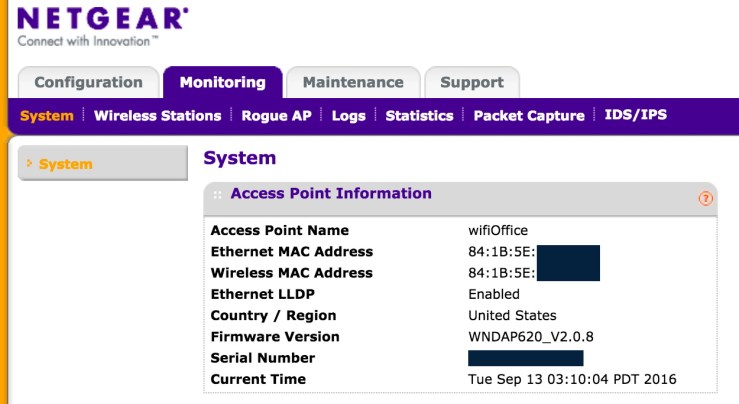
My current firmware version is 2.0.8, which can be found to the right of Firmware Version. As the most recent version available from Netgear is 2.0.11 there is an upgrade available.
Upgrading
Review the release notes
It is very important to review the release notes associated with the firmware upgrade. The manufacturer includes instructions regarding how to perform the upgrade and you might find out you need to manually record all of your device settings as the firmware upgrade will restore your device to factory default settings. For me this is the case.
Installing
Netgear distributes their firmware in a zip file, and have generally made no mention of unzipping the file before uploading the firmware. This step is necessary, however. Unzip the file and then choose the .tar file when uploading the firmware.
After clicking apply to upload the firmware it will appear as if nothing is happening. Be patient and if possible watch the lights on the device. You will see the lights flash and then go through their normal boot sequence when the install is complete.
After Upgrade
If your upgrade caused your device to reset to factory default settings then you will have to go through a complete reconfiguration process. For me this upgrade from 2.0.8 to 2.0.11 didn’t cause this, despite the warnings on Netgear’s site.
I like to check the firmware version noted on the admin site to validate that the install was successful.

The Firmware Version now references 2.0.11 so everything was successful.
 A Technical Journey